본 글에서는 노드(node) 기반 Generative AI 인터페이스인 ComfyUI를 RunPod의 Serverless 환경에서 API 형태로 제공하는 방법을 다룹니다.
핵심적으로 다음 내용을 소개합니다:
- RunPod Serverless 플랫폼에 ComfyUI 서비스 올리기
- worker-comfyui 기반 Docker 이미지 커스터마이징 및 배포
- Network Volume 마운트를 통한 모델, Lora, custom_nodes 등 데이터 유지
- Next.js 프론트엔드와 ComfyUI API 연동 과정
1. Runpod Serverless 세팅
Runpod - Serverless - Create an Endpoing - Docker Image
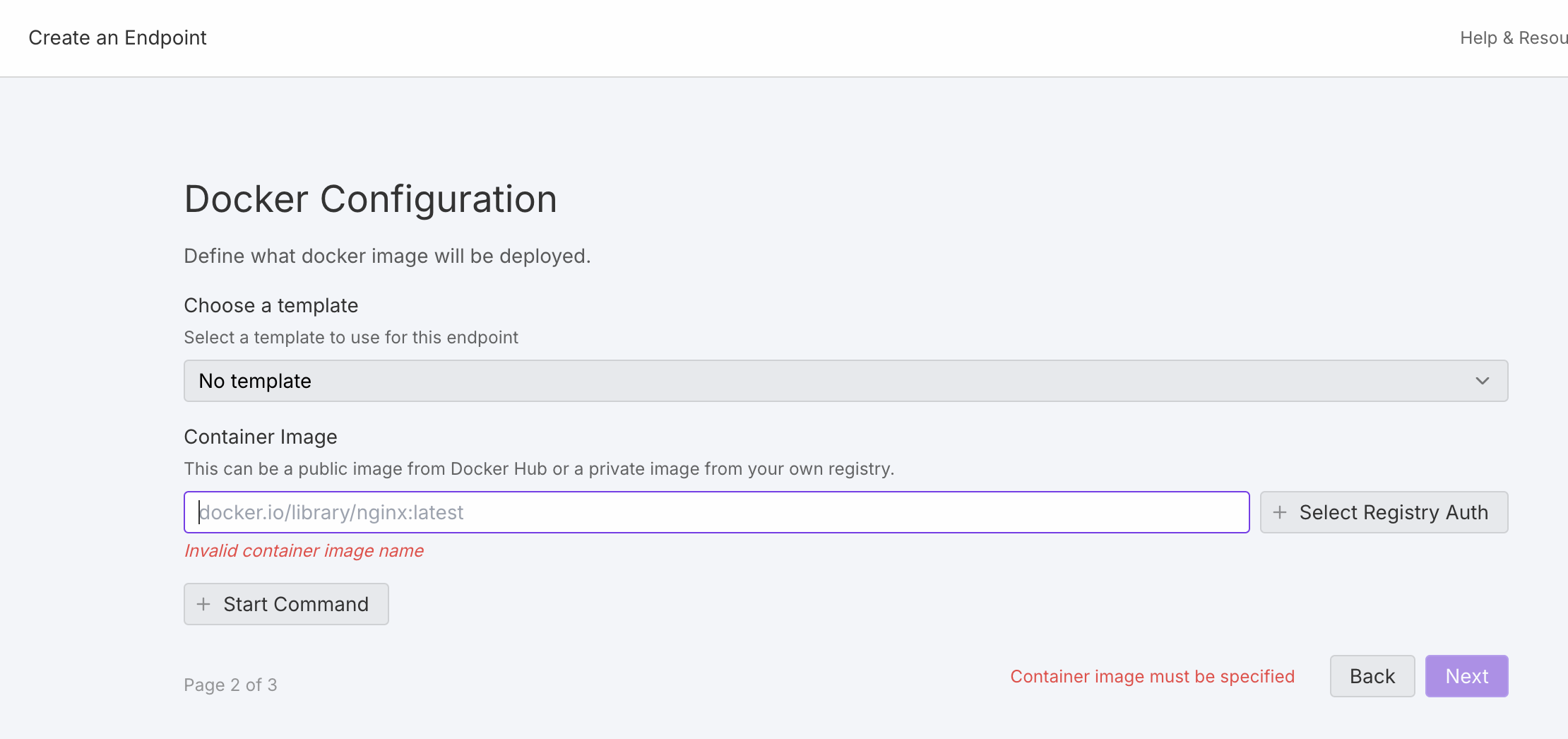
Container Image 를 작성해야한다.
docker hub 에 올라가 있는 이미지 이름을 작성하면 된다
나는 comfyUI 어플리케이션이 말아져 있는 Docker 이미지를 사용하고 싶다.
https://github.com/runpod-workers/worker-comfyui
GitHub - runpod-workers/worker-comfyui: ComfyUI as a serverless API on RunPod
ComfyUI as a serverless API on RunPod. Contribute to runpod-workers/worker-comfyui development by creating an account on GitHub.
github.com
2. worker-comfyui Docker 이미지 사용하기
위 깃헙 레포지토리에서 Available Docker Images 에서 안내하는 것 중 원하는 이미지를 받으면 된다.
ex) runpod/worker-comfyui:5.3.0-flux1-dev
버전은, 역시 링크되어있는 release page 에서 원하는 버전을 세팅하면 된다.
이제 저 이미지 name 을 1번의 docker image 기입란에 입력하고 다음으로 넘어가서 원하는 스펙을 세팅하고 배포를 하면된다.
3. worker-comfyui Custom
나는 그동안 Runpod - Pod 서비스에 Network Volume 을 연동하고 ComfyUI 어플리케이션을 올려서 UI 로 이미지 생성 테스트를 했었다.
그동안 사용했던 모델들, custom_node 들을 그대로 사용하기 위해, 사용하던 Network Volume 을 Serverless 서비스에도 유지하여, 만들고 테스트 했던 workflow 를 사용하고 싶다.
2번의 runpod/worker-comfyui:5.3.0-flux1-dev 이미지를 사용하면 model 은 flux1-dev 모델 밖에 쓸 수 없음.
3-1. worker-comfyui 포크 뜨기
worker-comfyui 에서 제공하는 Dockerfile, start.sh, 등 Network Volume 을 연동하기 위해 커스텀이 필요하다
Dockerfile 을 보면, MODEL_TYPE 에 따라서, 어떤 모델을 미리 다운로드 받을지 정한다.
나는 이미 필요한 모델들은 Network Volume 에 있기 때문에,
docker build 할때 arg 로 MODEL_TYPE=none 으로 넘기면 된다.
(이건 나중에 docker build 할때 매개변수 넘기는 명령어 세팅함)
3-2. Network Volume 내부 models 디렉토리 연결하기
Runpod - Pod 서비스에 Network Volume 에서 ComfyUI 를 올려서 사용할때,
내부적으로 파일시스템 구조가 아래와 같이 세팅 되어있다.
/workspace/ComfyUI/models/ 폴더 아래에,
/checkpoints, /loras, /diffusion_models... 등등 모델타입별로 모델들이 들어있다.
이 구조를 내가 사용할 comfyui 어플리케이션에게 알려주어야 한다.
포크 뜬 worker-comfyui 레포지토리 안에,
/src/extra_model_paths.yaml 파일을 만들고, 아래와 같이 매핑 세팅을 한다.
runpod_worker_comfy:
  base_path: /runpod-volume/ComfyUI/models
  checkpoints: checkpoints/
  clip: clip/
  clip_vision: clip_vision/
  configs: configs/
  controlnet: controlnet/
  embeddings: embeddings/
  loras: loras/
  upscale_models: upscale_models/
  vae: vae/
  unet: unet/
  diffusion_models: diffusion_models/
  text_encoders: text_encoders/
  diffusers: diffusers/
  gligen: gligen/
  hypernetworks: hypernetworks/
  photomaker: photomaker/
  pulid: pulid/
  style_models: style_models/
  vae_approx: vae_approx/
  wget-log: wget-log/
3-3. Network Volume 내부 custom_nodes 디렉토리 연결하기
/srt/start.sh 수정
시작 쉘 파일에, 사용하던 Network Volume 안의 custom_nodes 를 worker-comfyui 상의 custom_nodes 참조 폴더 안에 복사를 한다
(심볼릭 링크로 처리를 하려했었는데, custom_nodes 를 불러오지 못하는 이슈가 있어서, 통째로 복사하는 방식을 택함)
# ─────────────────────────────────────────────────────────────
# Debug: Check if storage paths exist
echo "worker-comfyui: Checking storage paths..."

# Copy network-volume ComfyUI resources into installed ComfyUI
echo "worker-comfyui: Copying custom_nodes from Network Volume..."

# Copy all custom_nodes from network volume to local directory
if [ -d "/runpod-volume/ComfyUI/custom_nodes" ]; then
    echo "ls -la /runpod-volume/ComfyUI/custom_nodes"
    ls -la /runpod-volume/ComfyUI/custom_nodes/

    # Remove any existing symlinks or directories that might conflict
    rm -rf /comfyui/custom_nodes/custom_nodes

    # Copy all custom nodes
    cp -r /runpod-volume/ComfyUI/custom_nodes/* /comfyui/custom_nodes/ 2>/dev/null || echo "worker-comfyui: No files to copy or copy failed"

    echo "worker-comfyui: Custom nodes copied successfully"
    echo "ls -la /comfyui/custom_nodes/"
    ls -la /comfyui/custom_nodes/
else
    echo "worker-comfyui: No custom_nodes directory found in Network Volume"
fi
# ─────────────────────────────────────────────────────────────
3-4. custom_nodes 에서 필요한 PIP requirements 세팅
/requirements-custom-nodes.txt
파일을 생성해서, 필요한 requirements 들을 따로 관리하도록 한다.
여기 적힌 의존성을 읽어서, Dockerfile 에서 설치를 하도록 해야한다
# Custom nodes dependencies
# Core dependencies
opencv-python
gguf
numba
piexif

# Machine learning and scientific computing
scikit-image
accelerate

# Utilities
simpleeval

# Hugging Face compatibility fix
huggingface_hub

# Additional packages that might be needed by various custom nodes
# (uncomment as needed)
transformers
# diffusers
# matplotlib
# pillow
# requests
# websocket-client
# lark
# scipy
# numpy
# pandas
Dockerfile 수정
# Change working directory to ComfyUI
WORKDIR /comfyui

# Support for the network volume
ADD src/extra_model_paths.yaml ./

# Go back to the root
WORKDIR /

# Install Python runtime dependencies for the handler
RUN uv pip install runpod requests websocket-client

# Copy and install common dependencies for custom nodes
COPY requirements-custom-nodes.txt /tmp/requirements-custom-nodes.txt
RUN uv pip install -r /tmp/requirements-custom-nodes.txt
4. 커스텀한 docker 이미지를 docker hub 에 업로드
.github/workflows/docker-build.yml
생성하고, 아까 위에서 언급했던 docker build 할때, MODEL_TYPE=none
로 변수를 넘겨서 빌드할도록 세팅한다.
(Github Action 으로 docker 이미지를 build 해서 Docker hub 에 올리는 방법을 사용했지만,
Runpod 에서 Docker Hub 대신, Github Repo 를 통해서 서비스를 올리는 방법도 제공을 한다.
지금 소개하는 Docker Hub 에 올리고 Runpod 에서 그 이미지로 배포하는 방식은, 이미지를 수정해서 Docker 이미지 버전이 변경되었을때, 자동으로 roll out 이 되지 않아서, 버전을 수정해주어야한다.
Github Repo 로 세팅을 하면 이미지를 변경해서 레포지토리에 push 되면, roll-out 이 트리거 되어서, 신규 버전으로 배포가 가능하다)
# .github/workflows/docker-build.yml
name: Build and Push Docker Image

on:
  push:
    branches:
      - main

jobs:
  build_and_push:
    runs-on: ubuntu-latest

    steps:
      - name: Checkout code
        uses: actions/checkout@v3

      - name: Set up QEMU
        uses: docker/setup-qemu-action@v2

      - name: Set up Docker Buildx
        uses: docker/setup-buildx-action@v2

      - name: Log in to Docker Hub
        uses: docker/login-action@v2
        with:
          username: ${{ secrets.DOCKERHUB_USERNAME }}
          password: ${{ secrets.DOCKERHUB_TOKEN }}

      - name: Build and push
        uses: docker/build-push-action@v4
        with:
          context: .
          push: true
          platforms: linux/amd64
          no-cache: true
          tags: |
            ${{ secrets.DOCKERHUB_USERNAME }}/worker-comfyui:${{ github.run_id }}
            ${{ secrets.DOCKERHUB_USERNAME }}/worker-comfyui:latest
          build-args: |
            MODEL_TYPE=none
Docker Hub 에 이미지 배포가 완료되면
1번에서 세팅한 docker Image 이름을 본인 docker 계정 밑에, 본인이 설정한 repo 이름으로 설정하여 배포한다.
DOCKERHUB_USERNAME/worker-comfyui
5. Next.js 웹 어플리케이션에서, Serverless Endpoint 로 API 요청
Runpod 자체에 Request 로 workflow 를 담아서 요청 테스트도 가능하다
이제, Next.js 에서 요청을 날려보려한다.
브라우저에서 바로 fetch를 하면 CORS 가 발생하므로,
Next 의 api/route.ts 라우트 함수를 사용해서 Next 서버에서 요청을 날리고 응답을 받는 방식으로 구성하였다 (백엔드 구성을 생략)
/app/api/runpod/route.ts 를 생성한다
import { NextRequest, NextResponse } from "next/server";

export async function POST(request: NextRequest) {
  try {
    const formData = await request.formData();
    const imageFile = formData.get("image") as File;

    if (!imageFile) {
      return NextResponse.json({ error: "Image is required" }, { status: 400 });
    }

    const allowedTypes = ["image/png", "image/jpeg", "image/jpg"];
    if (!allowedTypes.includes(imageFile.type)) {
      return NextResponse.json(
        { error: "Only PNG, JPG, and JPEG files are allowed" },
        { status: 400 }
      );
    }

    if (!process.env.RUNPOD_API_KEY) {
      return NextResponse.json(
        { error: "RUNPOD_API_KEY is not configured" },
        { status: 500 }
      );
    }

    const imageBytes = await imageFile.arrayBuffer();
    const imageBase64 = Buffer.from(imageBytes).toString("base64");

    const payload = {
      input: {
        workflow: {
          "1": {
            inputs: {
              vae_name: "ae.safetensors",
            },
            class_type: "VAELoader",
            _meta: {
              title: "Load VAE",
            },
          },
          "2": {
            inputs: {
              clip_name1: "clip_l.safetensors",
              clip_name2: "t5xxl_fp8_e4m3fn_scaled.safetensors",
              type: "flux",
              device: "default",
            },
            class_type: "DualCLIPLoader",
            _meta: {
              title: "DualCLIPLoader",
            },
          },
          "3": {
            inputs: {
              image: ["4", 0],
            },
            class_type: "FluxKontextImageScale",
            _meta: {
              title: "FluxKontextImageScale",
            },
          },
          "4": {
            inputs: {
              direction: "right",
              match_image_size: true,
              spacing_width: 0,
              spacing_color: "white",
              image1: ["20", 0],
            },
            class_type: "ImageStitch",
            _meta: {
              title: "Image Stitch",
            },
          },
          "12": {
            inputs: {
              unet_name: "flux1-dev-kontext_fp8_scaled.safetensors",
              weight_dtype: "default",
            },
            class_type: "UNETLoader",
            _meta: {
              title: "Load Diffusion Model",
            },
          },
          "14": {
            inputs: {
              pixels: ["3", 0],
              vae: ["1", 0],
            },
            class_type: "VAEEncode",
            _meta: {
              title: "VAE Encode",
            },
          },
          "15": {
            inputs: {
              samples: ["25", 0],
              vae: ["1", 0],
            },
            class_type: "VAEDecode",
            _meta: {
              title: "VAE Decode",
            },
          },
          "16": {
            inputs: {
              conditioning: ["24", 0],
            },
            class_type: "ConditioningZeroOut",
            _meta: {
              title: "ConditioningZeroOut",
            },
          },
          "19": {
            inputs: {
              lora_name: "kontext-mk-glasses-v3.safetensors",
              strength_model: 0.9000000000000001,
              strength_clip: 1,
              model: ["12", 0],
              clip: ["2", 0],
            },
            class_type: "LoraLoader",
            _meta: {
              title: "Load LoRA",
            },
          },
          "20": {
            inputs: {
              image: "input_image.png",
              refresh: "refresh",
            },
            class_type: "LoadImageOutput",
            _meta: {
              title: "Load Image (from Outputs)",
            },
          },
          "21": {
            inputs: {
              images: ["3", 0],
            },
            class_type: "PreviewImage",
            _meta: {
              title: "Preview Image",
            },
          },
          "22": {
            inputs: {
              filename_prefix: "ComfyUI",
              images: ["15", 0],
            },
            class_type: "SaveImage",
            _meta: {
              title: "Save Image",
            },
          },
          "23": {
            inputs: {
              text: "make him wear alio_glasses",
              clip: ["19", 1],
            },
            class_type: "CLIPTextEncode",
            _meta: {
              title: "CLIP Text Encode (Positive Prompt)",
            },
          },
          "24": {
            inputs: {
              text: "",
              clip: ["19", 1],
            },
            class_type: "CLIPTextEncode",
            _meta: {
              title: "CLIP Text Encode (Negative Prompt)",
            },
          },
          "25": {
            inputs: {
              seed: 945612421605210,
              steps: 20,
              cfg: 0.8,
              sampler_name: "euler",
              scheduler: "simple",
              denoise: 1,
              model: ["19", 0],
              positive: ["27", 0],
              negative: ["16", 0],
              latent_image: ["14", 0],
            },
            class_type: "KSampler",
            _meta: {
              title: "KSampler",
            },
          },
          "26": {
            inputs: {
              conditioning: ["23", 0],
              latent: ["14", 0],
            },
            class_type: "ReferenceLatent",
            _meta: {
              title: "ReferenceLatent",
            },
          },
          "27": {
            inputs: {
              guidance: 3,
              conditioning: ["26", 0],
            },
            class_type: "FluxGuidance",
            _meta: {
              title: "FluxGuidance",
            },
          },
        },
        images: [
          {
            name: "input_image.png",
            image: imageBase64,
          },
        ],
      },
    };

    const response = await fetch(
      "https://api.runpod.ai/v2/[YOUR_ENDPOINT]/run",
      {
        method: "POST",
        headers: {
          "Content-Type": "application/json",
          Authorization: `Bearer ${process.env.RUNPOD_API_KEY}`,
        },
        body: JSON.stringify(payload),
      }
    );

    if (!response.ok) {
      const errorText = await response.text();
      console.error(`RunPod API error: ${response.status} - ${errorText}`);

      if (response.status === 401) {
        throw new Error(
          "Authentication failed. Please check your RunPod API token."
        );
      }

      throw new Error(`HTTP error! status: ${response.status}`);
    }

    const data = await response.json();
    return NextResponse.json(data);
  } catch (error) {
    console.error("Error in Glasses LORA API:", error);
    return NextResponse.json(
      { error: "Internal server error" },
      { status: 500 }
    );
  }
}
여기서 핵심은 아래와 같다.
- Kontext 모델도 사용가능
- Kontext 에 input 으로 사용할 이미지를 request 로 담아서 요청할 예정, 이를 받아서, workflow 상에 담아서 /run 요청가능
- RUNPOD_API_KEY 는 runpod 에서 api 키를 생성해서 요청시 authorization 헤더에 Bearer 로 담아주어야 하므로 필요
- 이미지는 base64로 변환해서 전송해야함
- ComfyUI 에서 사용하던 워크플로우를 EXPORT(API) 형식으로 추출하여, 나오는 json 을 그대로, workflow 에 담으면 된다
- json을 보면, 알 수 있듯이, Network Volume 에서 다운 받아서 기존에 사용하던 kontext 양자화 모델이나 내가 만든 Lora 들을 그대로 사용 할 수 있다.
- 그 다음 이제 중요하게 맞춰 주어야 하는게 , input 으로 받는 image 의 name 값이다.
20 번 노드에, inputs.image : “input_image.png”
여기서 사용한, 이미지 명을
맨 하단에 images 리스트에, name 과 맞춰 주어야한다. - 워크플로우 상에서 이미지를 여러개 로드하면, 각각 이름을 맞추고, images 리스트에 담으면 된다.
6. 컴포넌트 단에서 api 함수 호출
  const handleSubmit = async () => {
    if (!selectedImage) {
      alert("이미지를 선택해주세요.");
      return;
    }

    setIsLoading(true);
    setResult(null);
    setStartTime(Date.now());
    setElapsedTime(0);
    setStatusMessage("이미지를 업로드하고 처리 중...");

    try {
      const formData = new FormData();
      formData.append("image", selectedImage);

      const response = await fetch("/api/runpod", {
        method: "POST",
        body: formData,
      });

      if (!response.ok) {
        const errorData = await response.json();
        throw new Error(errorData.error || "API 요청 실패");
      }

      const data = await response.json();

      if (data.id) {
        setJobId(data.id);
        setStatusMessage("작업이 시작되었습니다. 상태를 확인하는 중...");
        await pollJobStatus(data.id);
      } else {
        throw new Error("Job ID를 받지 못했습니다.");
      }
    } catch (error) {
      console.error("Submit error:", error);
      setStatusMessage(`오류: ${error instanceof Error ? error.message : "알 수 없는 오류"} (약 ${elapsed}초)`);
      setIsLoading(false);
    }
  };
작업의 진행상황은 runpod 에서 제공하는 "/status" 엔드포인트로, 폴링 방식으로 N초에 한번씩 jobId 를 담아서 요청하면,
status 상태를 볼수 있고, 완료시 결과이미지가 base64 스트링 형태로 응답된다.
이를 화면에 렌더링하거나, 더 나아가 S3에 업로드하여 output 을 관리하면 됨
[변경이 발생할 수 있는 포인트들]
✅ workflow 는 프론트 단에서 변경해서 요청가능 -> 필요시 text 나, json 형식으로 로 받아서 요청하도록 구현하면 됨
✅ 필요한 모델을 Network Volume 에 다운 받으면, 새로이 docker image build 나 배포 없어도 즉시 workflow 상에서 모델 사용가능
'AI' 카테고리의 다른 글
| MacBook에서 GPU 없이 ComfyUI Docker 로컬 실행하기 (0) | 2025.08.12 |
|---|---|
| [Error] ComfyUI 발생 에러 PulidFluxInsightFaceLoader (1) | 2025.08.11 |
| [Tensorflow 자격증 공부] batch_size의 개념 (0) | 2022.01.09 |
| [Tensorflow 자격증 공부] 1번문제 (0) | 2022.01.09 |
| [Utils] 구글 코랩(Google Colaboratory ) 단축키 (0) | 2022.01.08 |